Content Calendar Software: How to Plan and Publish Better Content
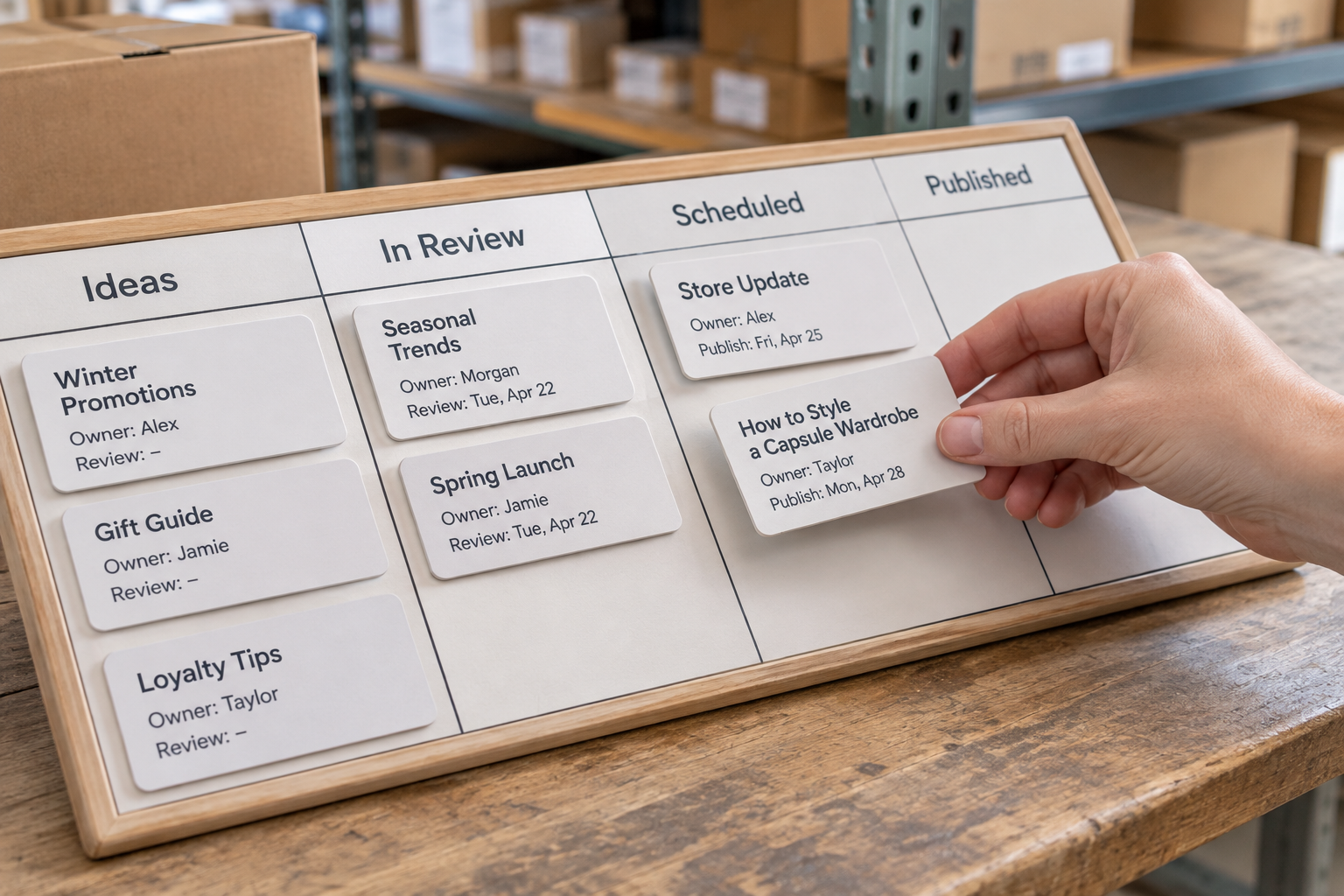
Content calendar software helps you plan, organise and schedule content in one place, so everyone can see what is being created, who owns it and when it should go live. The right tool can also connect research, reviews and publishing. This guide helps you choose one and build a workflow that suits your business.
What Should Content Calendar Software Do?
A useful calendar is more than a grid of dates. It gives each article a clear purpose, an owner and a route from idea to publication. Depending on the tool, it may also support keyword research, drafting, approvals or automatic publishing.
Start with your current bottleneck rather than a long feature list. If ideas are scattered across documents, a shared backlog may be enough. If finished articles sit unpublished because nobody has time to upload them, publishing connections matter more. Agencies managing several clients may need separate site views and access controls.
Use this beginner’s checklist to define the job before comparing tools:
- List the websites and content types you need to manage, such as blog posts, landing pages or social updates.
- Identify who suggests topics, writes, reviews and publishes.
- Record where work currently gets stuck or goes missing.
- Decide whether you need a planning tool, a publishing tool or both.
- Choose a manageable publishing rhythm based on your team’s capacity.

Keep the first version simple. A calendar becomes useful when it reflects how work actually moves, not when every possible field has been filled in.
How Do You Choose the Right Tool?
Compare software against a small set of real tasks. Ask each provider to show how you would add a topic, assign an owner, move a deadline and publish to your own platform. Check which features are included in the plan you are considering, rather than assuming every integration or user role is available by default.
| Requirement | What to check | Why it matters |
|---|---|---|
| Calendar and backlog | Can you see unscheduled ideas as well as upcoming work? | Useful ideas do not need arbitrary dates before they are ready. |
| Workflow stages | Can you show research, drafting, review and publication clearly? | People can see what happens next without chasing updates. |
| Ownership and access | Can you assign work and control who can edit or publish? | Responsibilities are clearer, especially across client sites. |
| Publishing connections | Does it connect to your CMS directly or through an integration? | A connection can reduce manual transfers, but needs testing. |
| SEO planning | Can you record a search topic, intended reader and relevant page? | The team can plan around customer needs rather than dates alone. |
| Multiple sites | Can you separate calendars and permissions by website? | Agencies and multi-brand teams can reduce mix-ups. |
| Cost and limits | Check users, sites, publishing allowances and trial terms. | The apparent entry price may not cover your actual workflow. |
Also check what happens when you leave. Can you export your topics and dates? Where do drafts live? Knowing the answers makes it easier to change tools without losing your planning history.
For a closer look at common selection pitfalls, read our guide to content calendar software myths and facts.
During a trial, use a real assignment rather than a placeholder. Have the writer and reviewer find the brief, record a change and identify the next action. Note any steps that still require email or another document. This makes it easier to compare the complete workflow, including handovers, rather than judging the calendar view alone.
Build Your First Calendar
Before adding a month of deadlines, create a small backlog of topics worth publishing. Each entry should contain enough information for someone else to understand the assignment, without turning the calendar into a full editorial brief.
- Capture the customer question. Write the problem or question the article should address in plain language.
- Choose the intended reader. Note whether the piece is for a first-time buyer, an existing customer or another audience.
- Add a working title and topic. These can change during research; they are there to make the idea recognisable.
- Set the intended outcome. For example, explain a decision, answer a support question or help a reader understand a service.
- Assign an owner. One person should be responsible for moving the item forward, even when others contribute.
- Add a realistic date. Work backwards from publication to allow time for research, review and upload.

A status is often more useful than a colour alone. Use names such as “idea”, “brief ready”, “drafting”, “in review”, “ready to publish” and “published”. Agree what each means. For instance, “ready to publish” might mean the facts, links and final copy have been checked and the publication date has been confirmed.
Avoid treating the calendar as a promise to publish at any cost. Leave room for time-sensitive work, delays and corrections. An empty slot is easier to manage than an article that goes live before it is ready.
When setting dates, distinguish the draft deadline from the publication date. Give the reviewer a clear window and allow the owner time to resolve comments before upload. If an important source or approval is unavailable, move the publication date and record the reason; that makes the delay visible without disguising unfinished work as ready.
How Can You Connect Topics to Search Intent?
A calendar supports SEO when it helps you choose useful topics and follow through on them. It does not make a page rank simply because a keyword appears in a schedule. Begin with questions customers ask, then investigate how people search for those questions and what kind of page they expect to find.
For each proposed article, record a primary topic and a short description of the intended answer. Review existing search results to understand whether readers are likely looking for an explanation, a comparison or a product page. Then check your own site: an existing page may need an update rather than a competing article.
Google’s guidance on creating helpful, reliable, people-first content is a useful reference when deciding whether a topic and draft serve readers. For a practical research process, use our keyword research strategy checklist.
Hypothetical example: A local gardening business notices customers asking when to prune a particular shrub. Its calendar entry could identify the question, the relevant season, the person responsible for checking the advice and a link to an existing care page. The business can schedule the article before the question becomes pressing, without assuming the post will generate a particular result.
Group related topics where it helps readers navigate, but do not force every idea into a cluster. Add relevant internal links because they help someone take a useful next step. Record the links to check during review, and revisit them after publication if the destination pages change.
Want to bring research, scheduling and publishing into one workflow? Start a free trial of Epicurus One. You can also scan a site free in about 10 seconds; the three-day trial delivers daily articles.
Set Up a Review and Publishing Workflow
Content calendar software is most valuable when the status reflects actual work. Document a short route from idea to live page, then make sure everyone knows who can move an item between stages. A small business may have one person handling several steps; an agency may need separate client approval before publication.
- Brief: Confirm the reader, topic, intended outcome and any source material.
- Draft: Create the article in the agreed voice and flag anything that needs verification.
- Review: Check accuracy, clarity, links, brand fit and any claims that require evidence.
- Approve: Confirm who has final authority and how requested changes are recorded.
- Publish: Check the destination site, date, title, formatting and relevant links.
- Verify: Open the live page and correct any display or publishing issues.

AI-assisted drafting can reduce repetitive work, but it does not remove the need for review. Check descriptions of products and services against current information, inspect sources, and remove unsupported claims. For specialist or sensitive subjects, involve someone with the relevant expertise before publication.
If a client must approve content, build that step into the schedule rather than relying on an email sent at the last minute. Record the decision in an agreed place, including any requested changes, so the publishing owner knows which version is final.
Make review comments actionable. Identify the passage, explain what needs to change and, where appropriate, point to the source or person who can verify it. The owner can then resolve each comment or flag an outstanding decision before requesting approval. This is especially useful when several people review the same draft at different times.
What Should You Check Before Automating Publication?
Automatic publishing can remove copy-and-paste work, but the connection needs the same care as the content. First confirm that the tool supports your website platform and that the account connecting it has the appropriate permissions. Limit access to the people who need it, and review those permissions when roles change.
Epicurus One connects directly to WordPress, Shopify and Wix, and can publish via Make or Zapier. It also supports multiple sites from one account. The right setup depends on where you publish and whether you want a human review before an article goes live.
Before relying on any publishing connection, run a controlled test:
- Connect the intended site and confirm you are not using a client’s or colleague’s site by mistake.
- Prepare a test item with a clear title, headings and a link.
- Check whether the workflow creates a draft or publishes immediately, and choose the appropriate setting where available.
- Inspect the result in the website editor or on the live page, including formatting and links.
- Test how changes, failed transfers and rescheduling are handled before adding more items.

Keep a fallback procedure: who notices a failed publication, where the final copy is stored and who can publish it manually? For more detail, see the automated content creation and posting playbook.
Include a rescheduled item in the test, not just a successful first transfer. Confirm which date and version appear at the destination, and check that a cancelled item does not remain queued for publication. Record the steps needed to correct a mistake so the person on duty does not have to work them out under pressure.
How Do You Manage Several Sites and Improve the Process?
Once a single-site workflow is reliable, extend it carefully. For each site, keep the audience, voice, content priorities and publishing permissions distinct. A shared account can make oversight easier, but every scheduled item still needs an unmistakable destination and owner.
Agencies should agree with each client on the approval route, the people authorised to request changes and how urgent edits are handled. Avoid placing client-specific notes where another client can access them. Check the software’s access controls against the way your team actually works.
Set a regular calendar review to look for practical problems:
- Are deadlines slipping because briefs are incomplete or reviewers are unavailable?
- Are several articles answering essentially the same question?
- Are older pages more useful to update than new ideas are to publish?
- Did published pages appear on the intended site with the right formatting?
- Are responsibilities still accurate after team or client changes?
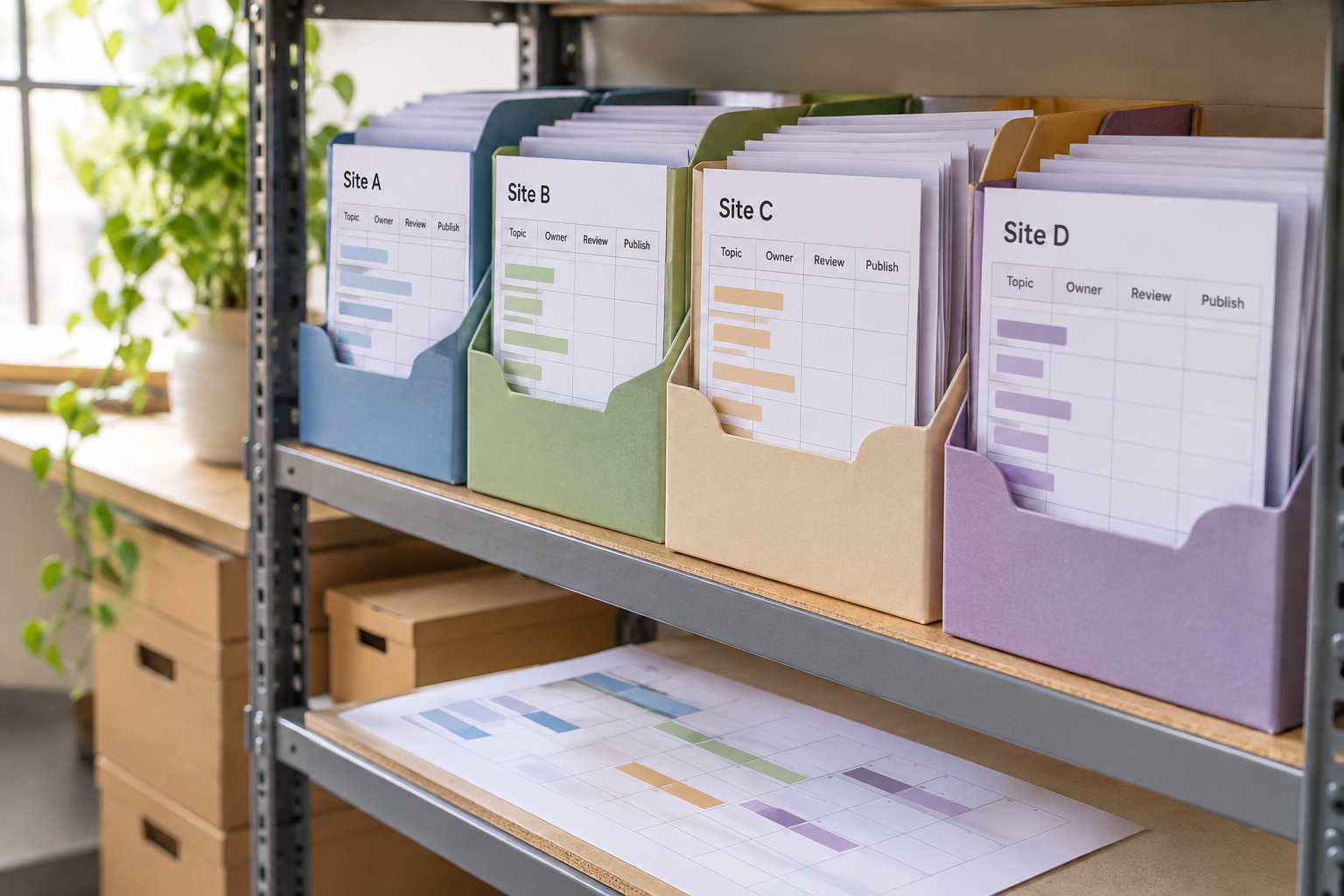
For published content, use the information available in your analytics and search tools alongside customer feedback. Google Search Console can help you understand a site’s presence in Google Search. Look at pages in context: an article answering a narrow customer question may have a different purpose from a broad introductory guide.
At each review, choose a small action and assign an owner. For example, update an outdated answer, clarify a brief that repeatedly causes questions or adjust a review deadline. Record what changed and revisit it at the next meeting. This keeps process improvements connected to problems the team has actually observed.
Do not expect every new page to produce an immediate or predictable outcome. Use what you learn to improve existing content, adjust topics and make the workflow more sustainable.
See a Calendar Workflow in Action
A visual walkthrough can help you compare the stages described above with the way a team actually moves an article from idea to publication. Look for examples that explain ownership, review and publishing settings, not just how to fill a calendar with dates.
When watching, note which steps happen inside the calendar and which require another tool. That distinction makes it easier to assess whether a demonstrated workflow would suit your website.
Frequently Asked Questions
Can a spreadsheet work as a content calendar?
Yes. A spreadsheet can hold topics, owners, statuses and dates, and may be enough for a simple workflow. Dedicated software becomes worth considering when handovers, permissions, multiple sites or publishing steps are difficult to manage. Compare the time spent maintaining the spreadsheet with the features you would actually use.
How far ahead should I plan content?
Plan far enough ahead to research, review and publish without rushing. The right horizon depends on your approval process, capacity and how often priorities change. Keep a backlog beyond the dates you have committed to, and review the schedule regularly so seasonal or time-sensitive topics are not left too late.
Does a content calendar replace keyword research?
No. The calendar records and organises decisions; research helps you decide which questions and topics are worth addressing. Some tools bring research into the same workflow, but you still need to assess reader intent, relevance to your business and whether an existing page already covers the subject.
Should every article be published automatically?
Not necessarily. Automatic publishing can be useful for content that has passed an agreed review, but some articles need expert or client approval first. Choose a workflow that matches the risk and sensitivity of the material, and verify the live page after publication, whether the final step was manual or automated.
What is the difference between a calendar and a content strategy?
A strategy sets direction: who you want to help, what subjects matter and what you want the content to accomplish. A calendar turns those decisions into assigned work and dates. You can start with a simple strategy, but scheduling articles alone does not explain why they should exist or whom they serve.
Ready to make publishing easier? Explore Epicurus One and start the free trial when you are ready to put your workflow into practice.